


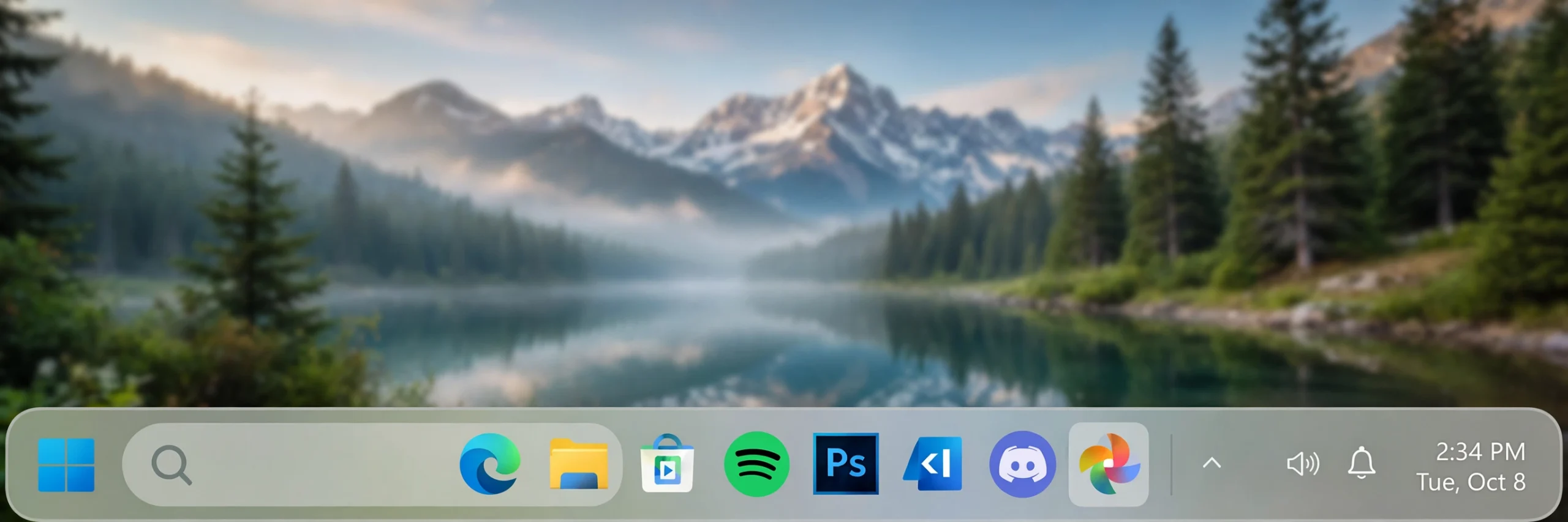
Your laptop taskbar is prime screen space, especially on a compact 13 or 14-inch display where every pixel counts. Yet most people never change it from the factory default: a solid bar, left-aligned icons on Windows 10, and a handful of pinned apps they rarely use. The good news is that some of the best tools for fixing this are completely free, lightweight, and safe to try. Here are the approaches worth your time in 2026, and how to choose between them.
1. Start With Windows Built-In Settings
Before installing anything, explore what Windows already offers, because it costs nothing and cannot break anything. Right-click the taskbar to control which items appear, hide widgets and extra buttons you never touch, and enable auto-hide if you want maximum vertical space for documents and web pages on a small laptop screen. In Settings under Personalization, you can also switch taskbar alignment on Windows 11, adjust transparency effects, and choose light or dark mode to match your working environment and reduce glare in the evening.
The limits appear quickly, though. Windows will not let Windows 10 users center icons properly, offers no real control over opacity or blur strength, and provides no meaningful animation options. Think of the built-in settings as your foundation: declutter first, decide what stays on the bar, and only then add a tool for the visual upgrades Microsoft left out. That order prevents the common mistake of styling a cluttered taskbar and wondering why it still does not look clean in everyday use.
2. Center and Style Your Icons With a Dedicated Utility
For the biggest visual upgrade from a single free tool, a dedicated taskbar customizer is hard to beat. The features to look for are precise icon centering, transparency, blur and acrylic styles, adjustable opacity, and optional animation, all without replacing the Windows shell or Start menu. On a laptop, that lightweight approach matters: you want the new look without a background program eating battery and memory that should be going to your browser tabs and work apps during a long day away from a charger.
A strong example in this category is Taskbarx, a free and open-source utility built specifically for taskbar centering and styling on Windows 10 and 11. In testing on a typical ultrabook, it delivers that centered, dock-like row and a frosted acrylic bar in minutes, and it can start with Windows so the layout survives reboots. For most laptop owners, this one tool covers the majority of what they wanted: a cleaner center, a more modern bar, and controls simple enough that you do not need to watch a tutorial to understand them.
3. Use Wallpaper and Theme Tweaks to Complete the Look
Taskbar tools work best when the rest of the desktop cooperates. Pair a transparent or blurred taskbar with a wallpaper that stays calm near the bottom of the screen, and your icons will remain readable all day. Free high-resolution wallpapers are easy to find, and even a simple dark gradient can make a laptop desktop look dramatically more expensive. Match your Windows accent color to a tone in the wallpaper, and enable dark mode if you mostly work indoors, to tie the Start menu, taskbar, and apps into one consistent scheme.
Do not overlook icon housekeeping as part of this step. Keep five to seven pinned apps maximum on a laptop taskbar: browser, files, messaging, email, and your main work program is a proven combination. Let everything else live in Start search. This discipline matters more on a laptop than on a big desktop monitor, because a centered row that grows too wide will push into the system tray area and undo all the visual calm you were trying to create in the first place.
4. Consider a Dock or Launcher for a Different Workflow
Some laptop users prefer to hide the Windows taskbar entirely and use a floating dock or keyboard-driven launcher instead. Docks give you a Mac-like row of large, magnifying icons, which can be delightful on a touchscreen laptop, while launchers let you open anything with a few keystrokes and keep the bottom of the screen completely empty. These are valid free options, but they change your habits more radically. You will need a few days to adjust, and the Start menu and system tray still rely on the Windows bar for notifications and quick settings.
For that reason, most people get better results by improving the taskbar they already know rather than replacing their workflow outright. Try the dedicated customization route first, live with it for a week of real work, travel, and presentations, and only explore docks if you still crave something more dramatic. Whatever you choose, keep a note of your settings and favor tools that are easy to uninstall. In 2026, the best laptop setup is not the flashiest one, it is the clean, fast, centered desktop that quietly helps you get through the day.
Final Advice for Laptop Owners
Start small, change one thing at a time, and judge every tweak by whether it survives a full workday on battery. Center your icons, soften the bar with blur or acrylic, remove everything you do not use, and stop there. That simple combination, achieved with free tools, gives most laptops a fresher, calmer, and more premium feel without any cost or risk to stability.
